
The User Interface is organized within a single web browser page. The screen serves as a data container report and management panel.
Data container report panel
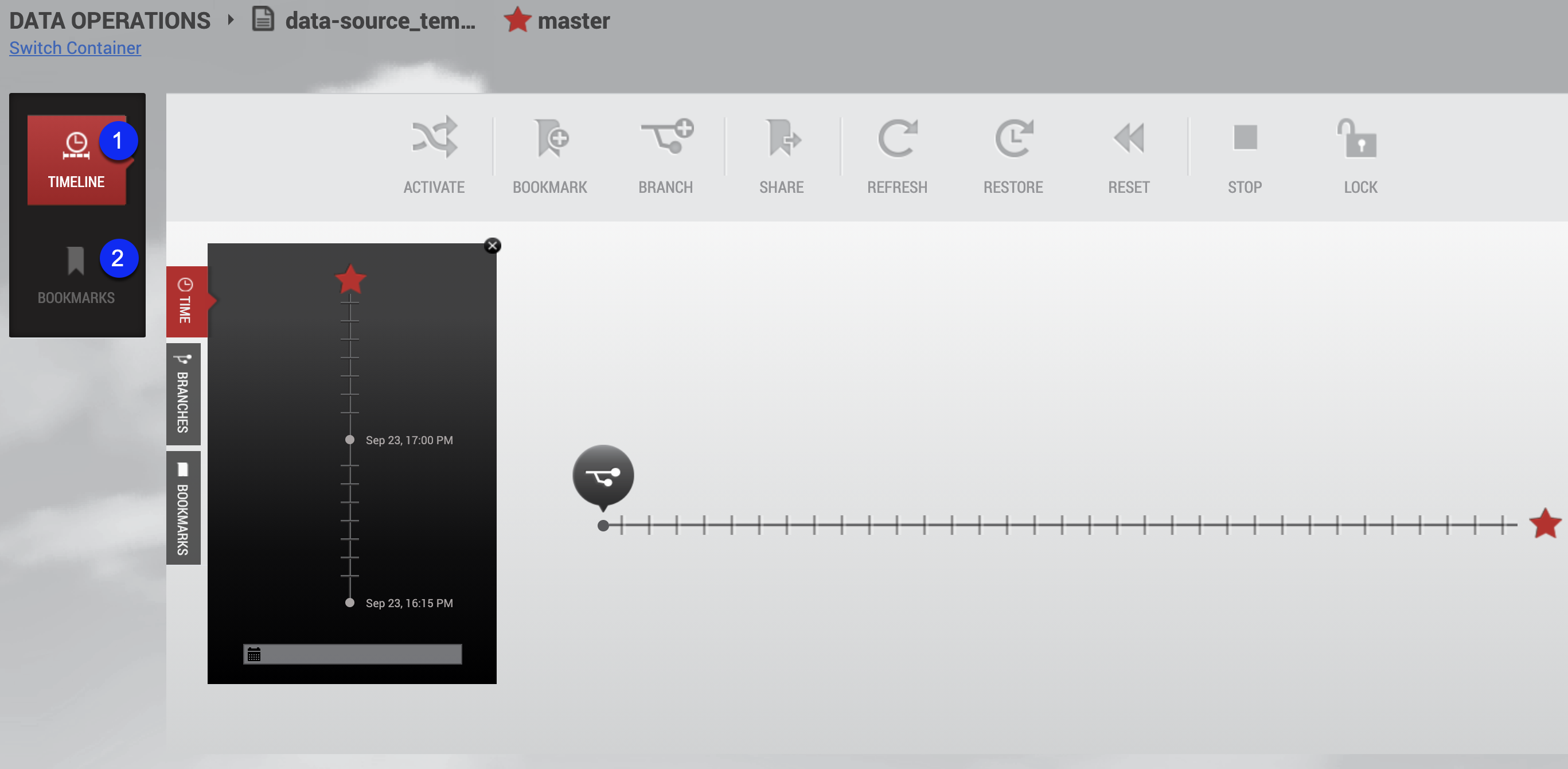
Data container report panel
The Data Container Report Panel for users consists of two tile buttons. They are summarized below as Timeline and Bookmarks.
Timeline

The Timeline tile allows you to view the timeline associated with a branch. Note that this only shows the timeline for a single branch. The branch timeline is how a user interacts with data in the container to mark, stamp, and perform tasks that occur at various points in time.
Bookmarks

The Bookmarks tile allows you to view and edit details about bookmarks within this data container and bookmarks accessible from it.
Data container workspace
The Data Container workspace is reached by selecting a template from the Management Overview page. Select a container and then select the Data Management link.
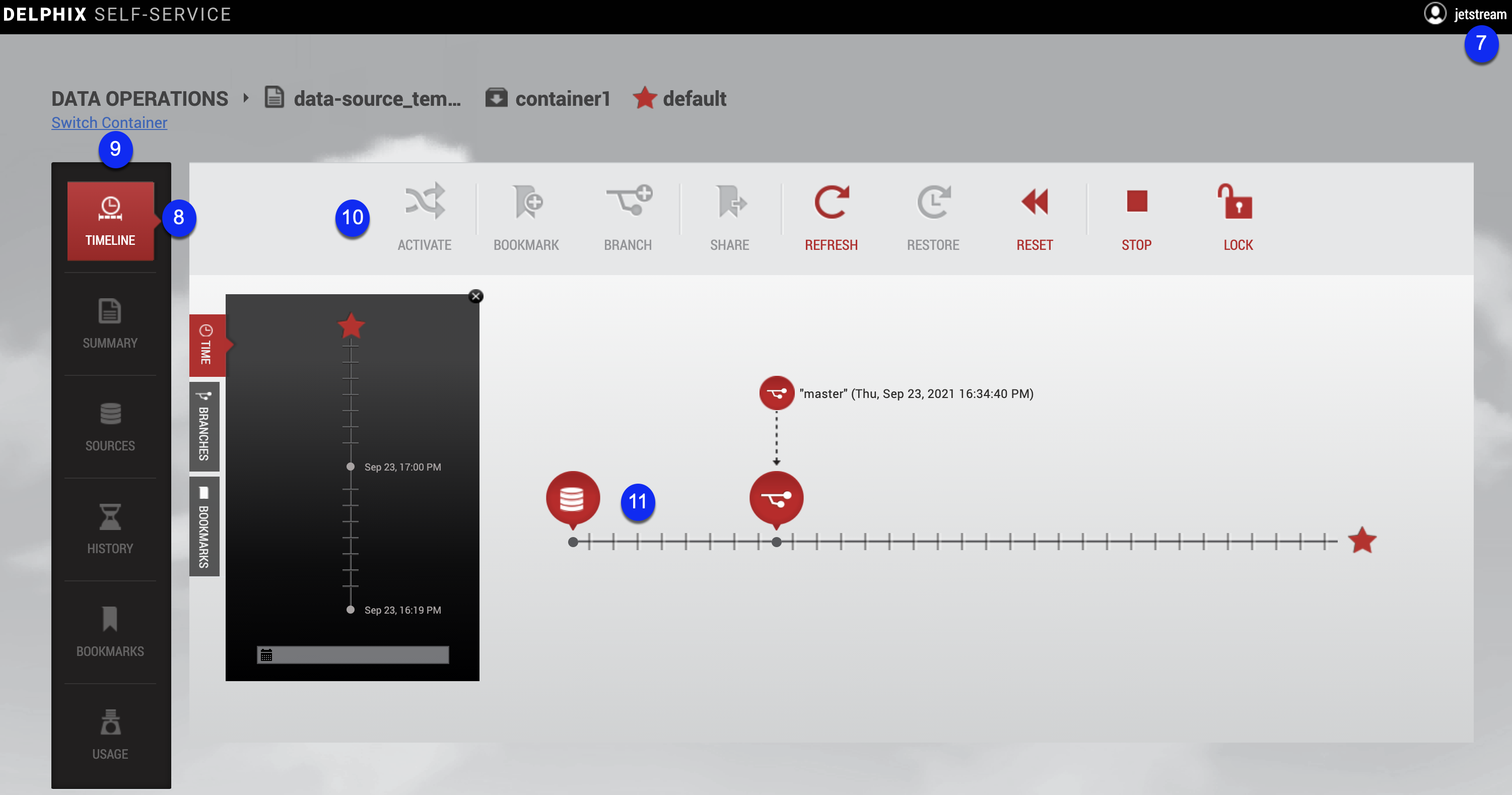
Data container workspace
The Data Container Workspace contains all the tools, actions, and view panels needed to begin using Self-Service features. For example, the workspace allows a user to view the history of their data on a branch, and to refresh, reset, and restore that data.
User login and settings drop down menu

The user login icon in the upper right-hand corner of the screen provides a drop-down menu with options to change your password and/or log out.
Data container view panel

The Data Container View Panel, found on the left-hand side of the screen, is divided into three tabular sections: time, branches, and bookmarks. These tabs allow you to find and select data that you are interested in. Based on user selections made in the view panel, the corresponding branch timeline can change.
Switch container

Allows you to switch between containers.
Data container self-service toolbar

The Data Container Self-Service Toolbar allows you to perform tasks and activities with data in the current container, by clicking on the following user action icons:
-
Activate will make a branch active
-
Bookmark will mark an interesting point of data on a branch timeline
-
Branch will create a branch that supports one task. A branch is a group of data time segments called a "timeline."
-
Share will share a bookmark with users of other data containers from the same template
-
Refresh will refresh each source in the data container on a branch timeline to the latest data in the corresponding source of the data template.
-
Restore will restore the data to a point in time from the template, the container, or a shared bookmark.
-
Reset will reset to the last interesting moment of data time on the current data timeline
-
Stop will stop a data container
-
Start will start a data container
-
Lock will lock a data container for the current user
-
Unlock will unlock a data container.
Branch timeline

Use this to view the timeline associated with a branch. Note that this only shows the timeline for a single branch. The branch timeline is how a user interacts with data in the container to mark, stamp, and perform tasks that occur at various points in time.