
Adding a dSource
-
Login to the Delphix Management application as an admin.
-
From the Manage menu select Environments.
-
Select an Environment and click the Databases tab. This tab provides details on all the available repositories.
-
Click on the Add dSource link.
-
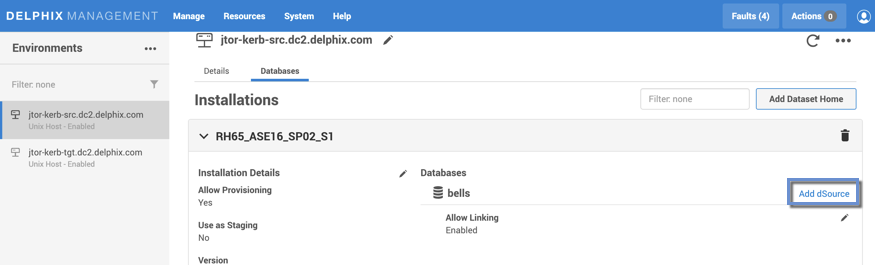
Click on a Data Source, then select Kerberos Authentication.
-
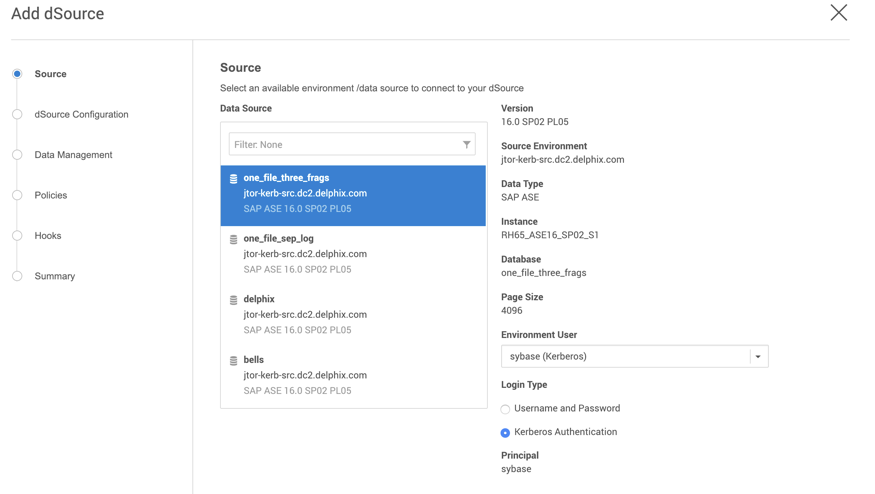
Complete all remaining fields, and then click Submit.
Linking a dSource
-
Login to the Delphix Management application as an admin.
-
From the Manage menu select Datasets.
-
Select a Dataset.
-
From the Actions menu located on the top-right select Link dSource.
All information in the Link dSource screen is automatically filled in with the data you previously selected.