
Accessing the network performance test tool
To access the Network Performance Test Tool:
-
In the top navigation bar, click Resources.
-
Select Network Performance Tool.
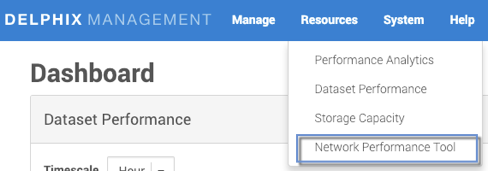
The Network Performance Tool page will appear. There are two tabs: Testing and History.
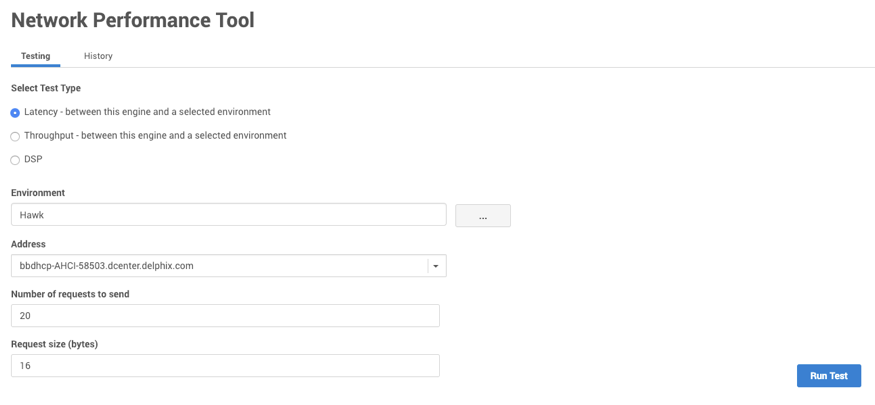
The testing tab
On the Testing tab, you can select one of three test types:
|
Test type |
Parameters required |
|---|---|
|
Latency |
|
|
Throughput |
|
|
Delphix session protocol |
|
Selecting an environment
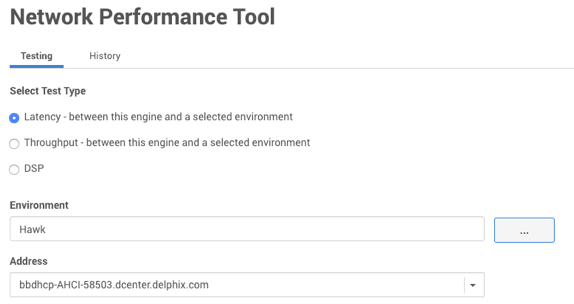
For either a Latency or Throughput test, you must select an environment. If you selected an environment in the Datasets panel, this field will auto-populate. If you need to select a different environment:
-
Next to the Environment field, click the button with three dots.
The Select Environment screen will appear.
-
Select the environment you want to use in the test.
-
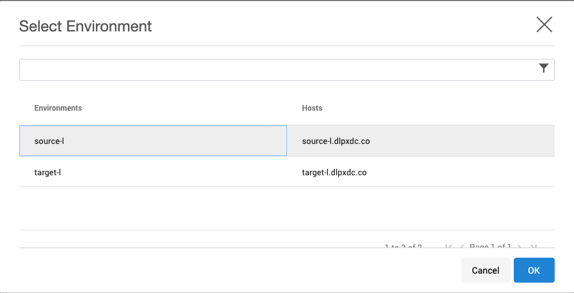
Click OK.
Running and canceling a network performance test
To run a test:
-
Enter all the required parameters.
-
Click Run Test.
-
To cancel the test click Cancel.
The history tab
In the History tab, you can view the results of all previous tests you have run.
-
Select the radio button for the type of test for which you want to see the results:
-
Latency, or
-
Throughput, or
-
Delphix Session Protocol
-
-
Optional: sort the tests by clicking one of the column headings.
-
Click the particular test for which you want to see the results.
The details of that test will appear. -
Click OK to return to the History tab.