
The following procedure provides details on creating a dSource with AWS S3 ingestion type.
Prerequisites
-
The source and staging instances must meet the host requirements as described in Requirements for CockroachDB Staging/Target hosts.
-
The accessibility of the backup location within the AWS S3 bucket from the Staging host must be verified prior to ingestion.
Creating dSource
-
Login to Delphix Management application.
-
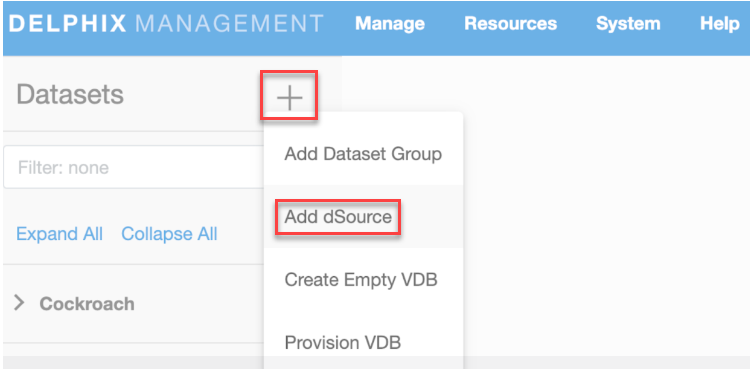
Click Manage > Datasets.
-
Click on Add dSource.
-
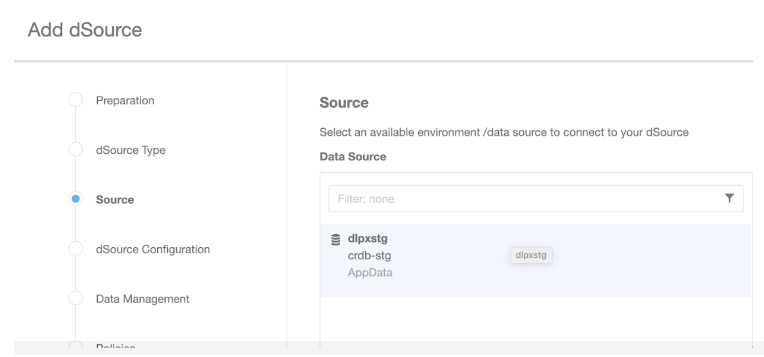
In the Add dSource wizard, select the CockroachDB source config you just created on the staging host.
-
Select the dSource type from the drop-down available on dSource wizard. Refer different dSource Types
-
Enter the CockroachDB specific parameters for your dSource configuration.
-
dSource Type: Type of dSource
-
dSource (GCP) details:
-
Mount Path The path on the host where Delphix will mount the dSource files via NFS
-
IP Address / Hostname of the Staging Cluster IP Address / Hostname of the interface for the staging Cluster (default 127.0.0.1)
-
Staging CockroachDB Port Number Staging DB port for cluster’s inter-node communication
-
Staging CockroachDB Console Port Number Staging Console port for HTTP requests
-
CockroachDB Backup’s Subdirectory Path CockroachDB Backup’s Subdirectory Absolute Path where backups are located in GCP Bucket
-
CockroachDB Backup’s Bucket or Container Name Storage bucket or container name including absolute path where CockroachDB backups are located
-
Authentication Option for GCP Buckets
-
Specified Authentication Need to specify GCP credentials in dSource configuration fields:
-
Encoded JSON Object Key Specify JSON encoded key associated with object storage holding CockroachDB backups
-
-
Implicit Authentication Store GCP credentials in JSON file on the staging host.
-
For using implicit authentication with GCP bucket, create a service account corresponding to the bucket.
-
Download the service account key for the service account using google could console.
-
Location of JSON Credential File Specify path of json file containing the key.
-
-
-
Skip Checking Localities Select the checkbox to skip checking the localities of a cluster before a restore.
-
Secure Mode Option to run the CockroachDB server in secure mode
-
Certificate directory path The absolute path to the certificate directory, it must have valid certificates containing the IP address or hostname for the CockroachDB server
-
CockroachDB Cluster Node Count Number of nodes that consists of a Staging CockroachDB cluster. Minimum: 3 and Maximum: 9
-
CockroachDB Parameters Additional CockroachDB configuration parameters to start the CockroachDB cluster.
-
Parameter Name CockroachDB Cluster configuration parameter name
-
Parameter Value CockroachDB Cluster configuration parameter value
-
-
Additional Nodes: Specify the node configuration for each node the CRDB cluster.
-
Environment Select environment on which node has to be created.
-
Environment User Select environment user corresponding to the environment.
-
IP Address / Hostname IP Address / Hostname of the interface for the staging node(default 0.0.0.0)
-
CockroachDB Port Number Staging DB port for node’s inter-node communication
-
CockroachDB Console Port Number Staging Console port for HTTP requests
-
Certificate directory path The absolute path to the certificate directory, it must have valid certificates containing the IP address or hostname for the CockroachDB server
-
Append cluster CRDB parameters Check with box if the cluster configuration parameters are applicable for the node.
-
Additional Node Configuration Parameters Additional CockroachDB configuration parameters to start the node
-
-
Then click Next to proceed further.
-
-
-
Provide the details for dSource Name and Target group on the dSource configuration page and click Next.
-
On the Data management page, select the following and click Next.
-
Staging Environment: This will be your staging host where source config was created.
-
User: Database OS user with required privileges for linking the dataset.
-
On the next screens, configure a policy, hooks, and review the configuration, then click on Next button to view the summary.
-
-
Click the Submit button which will initiate the linking process
-
Once dSource is created successfully, you can review the datasets on Manage > Datasets > dSource Name.
-
You must specify the input “Certificate directory path” when “Secure Mode” option is selected.
-
For more detailed guidance on CockroachDB certificate generation, refer to the official documentation: CockroachDB Certificate Generation.